Dell S3425DW Analysis: One Cable, One Screen
My Honest Verdict
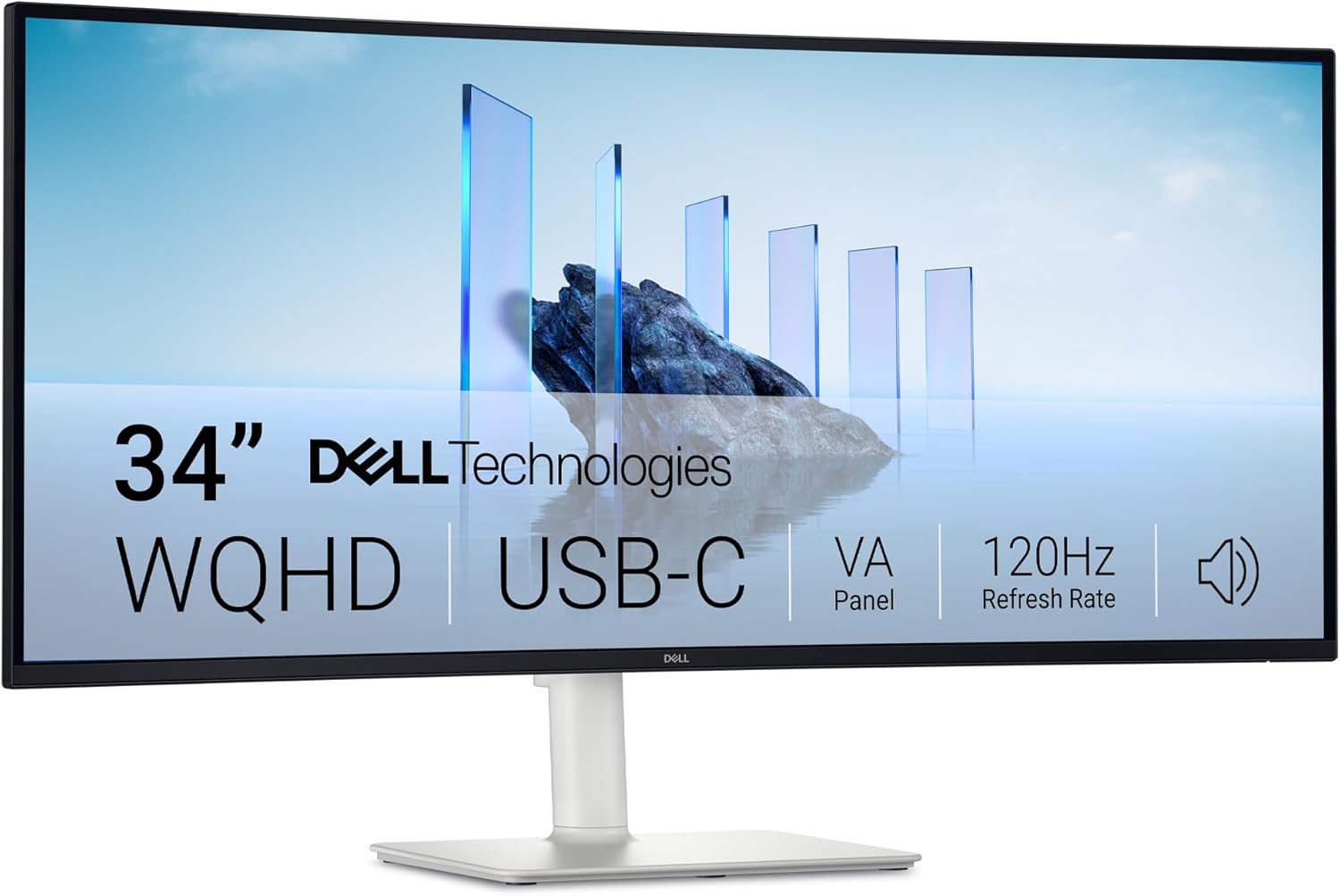
The Dell S3425DW is a 34-inch, WQHD ultrawide that makes a compelling case for anyone who wants to consolidate a dual-monitor setup into something cleaner. The headline strength is the USB-C connectivity — one cable handles video, data, and up to 65W of power delivery simultaneously, and buyers working with MacBooks or modern Windows laptops will feel that immediately. The headline limitation is refresh rate: 120Hz is perfectly fine for most people, but if you bought this expecting serious gaming credentials, you’re in the wrong aisle.
The Dell S3425DW runs a VA panel at 3440 x 1440 resolution across a 21:9 curve. That combination means you get genuinely deep blacks — a 3,000:1 contrast ratio is about three times what most IPS panels manage — and wide screen real estate that makes side-by-side working feel natural rather than forced. Colour coverage sits at 99% sRGB and 95% DCI-P3, which is solid for content work without being at the professional-grade ceiling. Brightness lands at 300 nits, which is fine for indoor use but won’t win any battles with ambient light.
This is a monitor built around the one-cable desk setup. If you’re a laptop user who wants to plug in and have everything — power, display, audio — sorted in seconds, the Dell S3425DW is a genuinely strong fit. If you need a hardcore gaming display or a colour-grading workhorse, look elsewhere. Everyone in between will find a lot to like.
See the Dell S3425DW listing and current availability on Amazon.

What It’s Best For
Office and Productivity Work
This is where the Dell S3425DW earns its keep. The 21:9 format at 3440 x 1440 gives you the equivalent of two 24-inch monitors side by side, but without the gap down the middle. Spreadsheets, document editing, video calls with a browser reference open — it all fits without constantly alt-tabbing. Dell’s Easy Arrange software lets you carve the screen into preset zones, which sounds gimmicky until you’ve actually used it for a day. The pop-out front USB ports are a thoughtful touch for anyone who regularly plugs in USB drives or charges phones at their desk. For a work-from-home or home office setup, this is a genuinely well-thought-out package.
Laptop Users on a Single-Cable Setup
The single-cable workflow is the real selling point here. Connect one USB-C cable and you get display output, up to 65W power delivery back to your laptop, and access to the monitor’s USB hub — all simultaneously. MacBook and modern Windows laptop owners will appreciate this immediately. Several buyers specifically called out their MacBook Pro running entirely off this cable without issue. It won’t power a demanding gaming laptop, and the 65W ceiling is something to check against your laptop’s requirements — but for ultrabooks and everyday work machines, it’s more than adequate. If you want to understand the full picture of what USB-C can and can’t do at a monitor’s connectivity level, the monitor connectivity guide covers it clearly.
Home Media and Streaming
A curved 34-inch screen at 21:9 is a genuinely cinematic shape — films shot in that ratio fill the panel edge to edge. The VA panel’s 3,000:1 contrast ratio helps here more than raw brightness does; dark scenes look properly dark rather than washed out grey. The built-in dual 5W speakers have caught buyers off guard in the best way — multiple reviews describe them as significantly better than expected for a monitor at this tier, with actual bass response rather than the usual thin treble-only output. Not a substitute for a proper soundbar, but more than usable for casual streaming.
The Specs That Really Matter
The VA panel here is worth understanding properly before you buy. VA sits between TN and IPS in most respects, but it has one clear advantage: contrast. That 3,000:1 contrast ratio is real, not marketing. Dark content — whether films, games, or dimly lit interfaces — looks significantly better on a good VA panel than on IPS at the same brightness level. The trade-off is that VA panels can show some colour shift at extreme viewing angles, and they’re historically prone to ghosting on fast-moving content. At 120Hz with the quoted 1ms response time (motion blur reduction mode) and a 5ms grey-to-grey response time, this is fine for casual gaming and fast-scrolling productivity work — but it’s not what you’d choose for competitive gaming. If panel type trade-offs matter to your use case, that’s worth reading before deciding.
Resolution at this screen size is a conversation worth having. 3440 x 1440 on a 34-inch panel gives you a pixel density of around 109 PPI — that’s the figure in the spec sheet and it’s honest. Text is sharp, icons are clear, and you’re not going to be squinting at a blurry UI. It’s not 4K-level pixel density, but at typical desk distances on an ultrawide this size, it doesn’t need to be. For understanding what resolution actually means at different screen sizes, it’s worth checking the numbers before assuming bigger is automatically sharper. As we move further into 2026, monitors at this resolution tier are increasingly well-supported by both Windows and macOS scaling, so compatibility is rarely an issue.
The HDR10 certification here is worth flagging honestly. HDR10 support at 300 nits peak brightness is what the industry calls entry-level HDR — it unlocks HDR metadata compatibility but doesn’t produce the contrast jumps you’d see on a proper HDR display with local dimming. Treated as a baseline that ensures HDR content doesn’t look worse than it would without support, it’s fine. Treated as a reason to buy this over a comparable non-HDR monitor, it shouldn’t be. The AMD FreeSync Premium adaptive sync implementation is more immediately useful — it keeps frame rates smooth within the supported range and eliminates tearing for anyone running an AMD GPU, with the Premium tier adding a low-framerate compensation floor. If you’re on Nvidia, FreeSync Premium still works over HDMI and DisplayPort with G-Sync Compatible enabled in the driver settings. On refresh rate and response time, 120Hz is a meaningful step up from 60Hz for everyday use — smoother scrolling, less visual fatigue — even if it’s not a gaming flagship number.
Check the full spec sheet and buyer Q&As for the Dell S3425DW on Amazon.
What Buyers Are Saying
The Dell S3425DW sits at 4.5 out of 5 stars from 108 Amazon reviews at time of writing. That’s a strong rating but still a relatively modest sample — enough to identify clear patterns, though individual experiences may vary more than on a product with several hundred reviews. The sentiment is genuinely consistent: buyers are pleased, and the praise themes repeat across very different types of user.
The USB-C one-cable setup is the most mentioned positive by some distance. MacBook users in particular repeatedly note that a single cable handles power, display, and data without compromise. Multiple buyers specifically called out the 65W power delivery as sufficient to run their machines all day without a separate charger in sight. That’s a practical win that doesn’t require any technical enthusiasm to appreciate — it just makes the desk cleaner and the setup faster.
The speakers drew more positive attention than you’d typically expect for built-in monitor audio. Several reviewers described them as “surprisingly good” or noted bass response they didn’t anticipate. One buyer used the phrase “far more bass than expected” — which for monitor speakers is almost unheard-of praise. They’re not audiophile quality, but they’re more than adequate for calls, casual music, and background audio without reaching for a separate speaker.
The consistent criticism is port selection. Multiple buyers wanted more rear USB-A ports — particularly for connecting peripherals like keyboards, mice, and webcams — and at least one mentioned the absence of an RJ45 ethernet port. One reviewer noted a workaround using a USB hub tucked behind the screen, which works but adds clutter that somewhat undercuts the clean-desk premise. One buyer on a non-English review mentioned KVM switching causing occasional mouse lag, which is worth noting for anyone planning to switch between two machines frequently. One buyer commented that image quality was “just okay” for photo editing — which aligns with what a 300 nit, non-local-dimming VA panel can realistically deliver.
Buyer Highlights
“One USBC cable to rule them all — power, video, and data sorted in seconds.” — The single-cable setup came up in nearly every five-star review from laptop users.
“The speakers have far more bass than expected — totally fine across most uses.” — Consistent feedback from buyers who assumed they’d need a separate speaker immediately.
“Down from twin monitors and a dock, and the cabling is so much simpler now.” — A recurring experience from buyers who consolidated a dual-monitor setup.
“Text is clear on both my Windows laptop and MacBook Pro — no scaling headaches.” — Multiple buyers confirmed clean out-of-box compatibility across platforms.
“Would have been five stars if it had an ethernet port and one more rear USB.” — The most common four-star complaint, and a fair one for power users expecting full hub functionality.

Worth Knowing Before You Buy
The port situation is the most concrete thing to think through before committing. The Dell S3425DW has 2 HDMI ports, 2 USB-C ports, and USB-A downstream ports — but the rear panel is lean on USB-A for peripherals. If you’re running a full desk setup with a keyboard, mouse, webcam, and external storage all needing connections, you will likely need a separate hub. One reviewer made it work with a USB hub cable-managed behind the screen, which is a reasonable solution — but worth budgeting for and planning around. There’s also no RJ45 ethernet passthrough, which eliminates the option for a wired network connection through the monitor alone. For anyone building a clean, cable-light setup, that’s worth knowing upfront. The monitor buying guide covers port planning in a way that helps you work out exactly what you need before you’re staring at the back of the panel wondering where everything goes.
VA panels at this size can exhibit a phenomenon called “black smear” — where fast-moving dark objects on dark backgrounds leave a trailing artefact. It’s not universal across all VA panels and depends heavily on individual unit calibration and settings, but it’s a known characteristic of the technology rather than a defect. For productivity and media use, it’s largely irrelevant. For fast-paced gaming, it’s worth knowing about. The stand ergonomics are solid — 130mm of height adjustment plus tilt and swivel covers most reasonable seated positions. The warranty documentation in the spec data shows a one-year advanced exchange service with premium panel exchange, which is standard Dell positioning — decent, not exceptional. Build quality from the reviews reads as sturdy; no one has flagged flex or wobble concerns.
View current stock and delivery details for the Dell S3425DW on Amazon.
Who Should Buy It (And Who Shouldn’t)
Buy If
- You use a laptop as your primary machine and want a genuine one-cable docking solution — the 65W USB-C power delivery is the kind of convenience that actually changes how your desk functions day to day.
- You’re coming from a dual-monitor setup and want the screen real estate without the centre bezel — the 34-inch 21:9 format handles this better than almost anything else at this size tier.
- You want deep, punchy contrast for films and mixed-use work without moving into OLED territory — the 3,000:1 VA contrast ratio genuinely delivers on this in a way IPS panels at the same spec level don’t.
- You work across both macOS and Windows and need plug-and-play compatibility — multiple buyers confirmed clean, no-fuss setup on both platforms without driver headaches.
Avoid If
- Your primary use case is competitive or fast-paced gaming — 120Hz and a 5ms grey-to-grey response time on a VA panel puts you behind what a dedicated gaming monitor at a similar price point offers, and VA ghosting on dark fast-moving content is a real consideration.
- You need the monitor to act as a fully featured USB hub replacing a separate dock — the rear port selection is limited enough that power users will need additional hardware to replace a dedicated docking station.
- You require a colour-accurate panel for professional photo or video grading — 95% DCI-P3 is solid for content creation hobbyists, but the 300 nit brightness ceiling and lack of local dimming fall short of professional display standards. See the specs explained guide if you’re unsure what those numbers mean for your workflow.
The Bottom Line
The Dell S3425DW is a well-executed ultrawide that earns its rating. It won’t win arguments about HDR performance or competitive gaming credentials, and the rear USB port situation will frustrate anyone who wants it to replace a full dock. But for the specific use case it targets — laptop users wanting a clean, capable, one-cable workspace with genuine screen real estate and better-than-expected built-in audio — it delivers clearly and consistently. The USB-C power delivery works, the VA contrast is genuinely good, and the ultrawide format is hard to go back from once you’ve used it for a week. Solid choice for the right buyer.
Find the Dell S3425DW on Amazon and check current availability.
At The Monitor Expert, our approach is built on data transparency rather than simulated hands-on testing. We rigorously analyse official manufacturer specifications and aggregate verified customer sentiment to provide honest, straightforward buying advice that cuts through the marketing noise.
As an Amazon Associate, I earn from qualifying purchases.
Browse by Specification
Looking for something specific? Browse our analyses by hardware and feature below, or check all monitor analyses in the Office Monitors and Mid-Range Monitors category archives.
[IPS Monitors] — [VA Monitors] — [TN Monitors] — [OLED Monitors]
Browse by Refresh Rate
[60Hz] — [75Hz] — [100Hz] — [120Hz] — [144Hz] — [165Hz] — [180Hz] — [200Hz] — [240Hz+] — [360Hz+]
Browse by Screen Size
[Small Screen] — [24-inch] — [27-inch] — [32-inch] — [Large Screen] — [Ultrawide]