Dell P2425H Analysis: Office-Ready Without the Fuss
My Honest Verdict
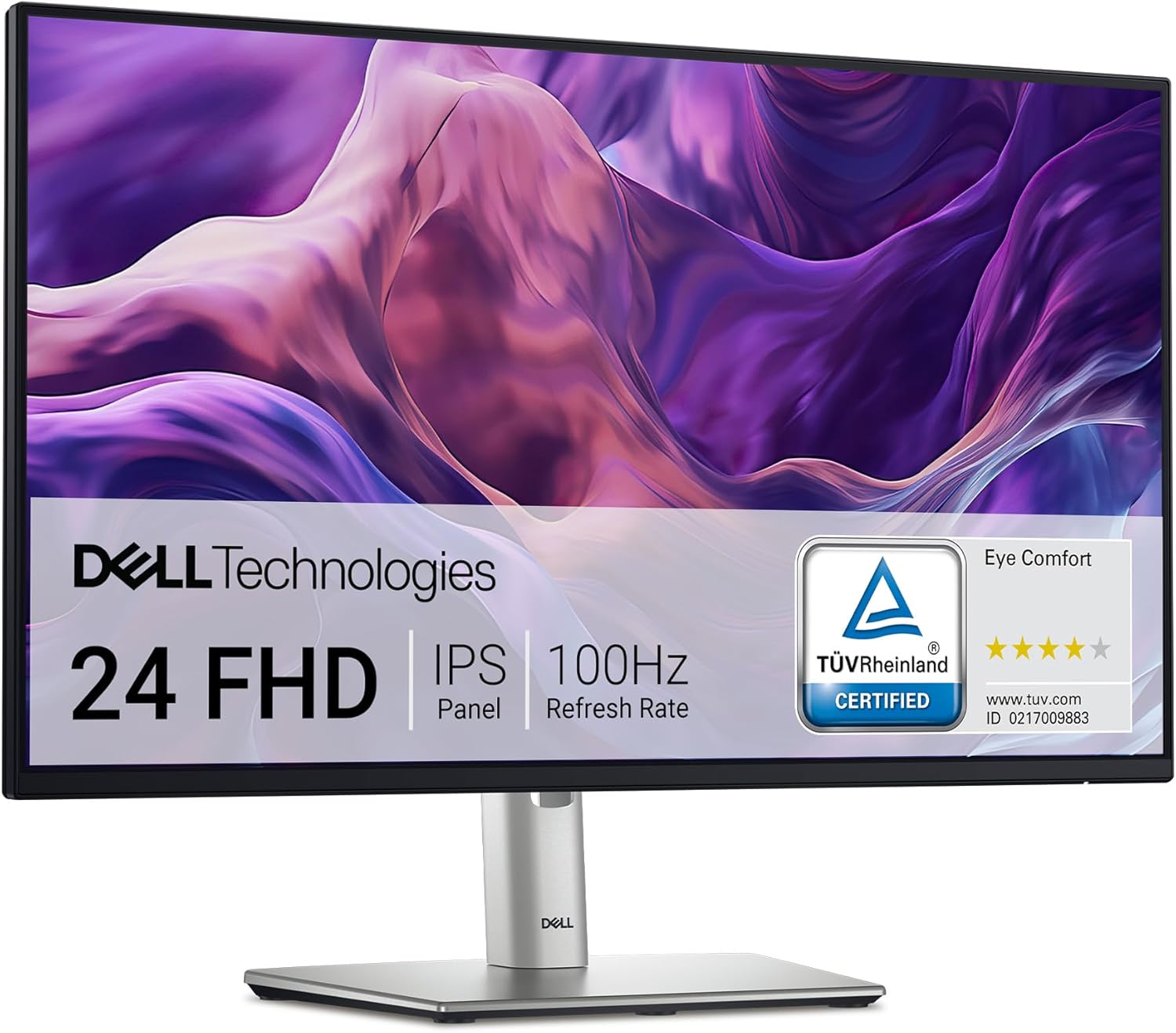
The Dell P2425H is a straightforward, well-built office monitor that does exactly what Dell’s professional range has always done — no nonsense, sensible specs, and enough connectivity to make IT managers quietly relieved. If you need a reliable 24-inch, 1920×1080 daily driver for desk work, document editing, or a second screen, this is one of the better-considered options at this tier. The headline limitation is equally straightforward: 1080p on a 23.8-inch panel is a comfortable match, but if you’re after anything resembling colour-critical creative work or high-framerate gaming, this isn’t built for either of those jobs.
In everyday use, the IPS panel means colours stay consistent wherever you’re sitting — no colour shift when you lean slightly to one side, which matters more than people realise if you’re spending eight hours in front of it. The 100Hz refresh rate won’t excite anyone coming from a gaming monitor, but it’s a meaningful step up from the 60Hz screens it’s likely replacing in office environments — scrolling and cursor movement genuinely feel smoother. The 5ms response time is quoted at grey-to-grey; don’t treat that as a competitive gaming spec, but for office use it’s entirely irrelevant as a concern.
This is a monitor for people who want a dependable screen from a brand with a real warranty behind it, not the most exciting display they can find. Buyers upgrading from an ageing 60Hz screen will notice the improvement immediately. Anyone chasing high refresh rates, deep contrast, or wide colour gamut for creative work should keep looking — this wasn’t designed with those buyers in mind, and it makes no attempt to pretend otherwise.
See the Dell P2425H listing and current availability on Amazon.

What It’s Best For
Office and productivity work is where the Dell P2425H earns its keep without argument. The IPS panel delivers consistent, accurate colour across a 178-degree viewing angle, which matters in open-plan office setups or multi-monitor arrangements where you’re not always dead-centre. The 99% sRGB coverage means documents, spreadsheets, and presentations render cleanly without the washed-out look you get from budget TN panels. Dell’s Easy Arrange software — which lets you snap windows into organised layouts — is a genuine productivity feature rather than filler. Add in the full ergonomic stand with height, tilt, swivel, and pivot adjustment, and this is a monitor designed around people who sit at a desk all day. If you want to know what makes a monitor genuinely suited to office use versus other categories, the right type of monitor for your use case guide covers this in detail.
Secondary screen setups suit this monitor well. The port selection — DisplayPort 1.2, HDMI, VGA, USB-C downstream, and four USB 3.2 Gen 1 Type-A ports — means you can run it off practically any host machine without an adapter hunt. One buyer specifically mentions it sitting comfortably next to a 4K monitor as a secondary display, which is exactly the kind of role this fills well. The 23.8-inch footprint keeps desk clutter manageable, and the thin bezel helps visually when it’s placed beside a larger panel.
Light, casual gaming is viable if your expectations are grounded. The jump from 60Hz to 100Hz is noticeable in everyday games — not just fast-paced titles, but anything with smooth scrolling environments or fluid menus. AMD FreeSync support removes screen tearing in compatible setups. This isn’t a dedicated gaming monitor, and nobody buying it for that reason should expect it to perform like one. But if you work on it all day and play casually in the evenings, you’re not making a painful compromise.
The Specs That Really Matter
The IPS panel is the single most important spec on this monitor and the one Dell buries in the description rather than leading with. IPS means wide viewing angles and accurate colour reproduction out of the box — considerably better than TN at similar price points, and a more consistent experience than VA if you’re doing anything colour-sensitive. For a deeper comparison of how panel types differ in practice, that’s worth a read before buying. For the Dell P2425H’s intended audience — office workers and general users — IPS is the right call, full stop.
The 100Hz refresh rate deserves a clear-headed assessment. It’s not a gaming spec, but it’s genuinely better than 60Hz for everyday use — text scrolling, cursor movement, and window dragging all feel noticeably smoother. The step from 60 to 100 is more perceptible than the step from 144 to 165, which is the kind of context most monitor marketing conveniently omits. For the buyer replacing a typical office monitor from five or more years ago, this will feel like a meaningful upgrade. The 5ms response time at grey-to-grey is adequate for this use case; if you want to understand how refresh rate and response time interact in real use, the difference between quoted specs and real-world performance is worth understanding before you buy.
1920×1080 at 23.8 inches gives a pixel density that’s comfortable for most office work — sharp enough that individual pixels aren’t visible at normal viewing distances, without the scaling complications that come with 4K at this screen size. If you’re working at 1080p on a 27-inch or 32-inch screen, you’d start to notice softness; at 23.8 inches, it’s a reasonable match. For anyone who wants a fuller explanation of how screen size and resolution interact, that’s covered in detail elsewhere. The 1500:1 contrast ratio is a step above typical IPS figures, which cluster around 1000:1 — this won’t transform the experience, but it does translate to slightly better perceived depth in dark scenes and richer blacks than you’d expect at this tier. Brightness at 250 nits is functional for indoor office environments; it won’t hold its own against direct sunlight.
Connectivity is a genuine differentiator here. DisplayPort 1.2, HDMI, VGA, USB-C downstream (delivering 15W charging), and four USB 3.2 Gen 1 Type-A ports mean this monitor functions as a desktop hub as well as a display. In 2026, most budget-tier monitors still ship with HDMI and DisplayPort and nothing else — the USB-C downstream and the USB hub built into the stand make the Dell P2425H considerably more practical for a busy desk. More on the connector options is covered in the monitor connectivity guide. Note that the USB-C here is a downstream data and charging port, not a full-bandwidth display input — you’ll need DisplayPort or HDMI to actually drive the screen.
Check the full spec sheet and buyer Q&As for the Dell P2425H on Amazon.
What Buyers Are Saying
The Dell P2425H holds a 4.4 out of 5 rating across 664 Amazon customer reviews, which is a solid result for a monitor at this tier. The sample is large enough to read meaningful patterns from, and the overall picture is one of satisfied buyers who got exactly what they expected from a Dell professional display.
Praise clusters heavily around image quality and ease of setup. Multiple buyers specifically call out how clean and sharp the IPS panel looks straight out of the box, with several noting that the upgrade from a 60Hz screen is immediately noticeable. The ergonomic stand gets frequent positive mentions — the range of height, tilt, swivel, and pivot adjustments is described as comprehensive by buyers who’ve used it in multi-monitor arrangements. Connectivity is another consistent positive: the USB hub built into the stand, the USB-C port, and the breadth of video inputs earn genuine appreciation rather than the afterthought treatment you see with budget alternatives.
The complaints that do appear are worth naming directly. A small number of buyers report missing cables in the box — specifically the HDMI cable which is listed as included but appears to have been absent from some shipments. This isn’t a hardware fault, but it created a frustrating setup experience for those affected. One buyer reports two consecutive units developing dead pixel lines within ten days of use, which is concerning even as an isolated report — though the reviewer speculates it may be a specific batch issue rather than a systematic product defect, and Dell’s three-year warranty provides recourse. The silver stand against a black monitor body is a cosmetic gripe raised by more than one buyer; worth knowing if that bothers you, pointless if it doesn’t. There are no speakers or audio output — flagged by one buyer as a surprise, though it’s noted in the specs for anyone who checks.
Buyer Highlights
“The image is excellent at 100Hz, and the joystick control on the rear makes adjusting settings straightforward.” — Consistent feedback from buyers who’ve moved from older Dell models or basic office screens.
“Set the stand up in minutes — height, tilt, rotation, it handles it all without fuss.” — Frequently mentioned by buyers who needed to position the screen alongside a larger monitor.
“Good quality monitor, but the HDMI cable wasn’t in the box as specified, which made for a frustrating first day.” — A recurring complaint from a subset of buyers, worth having a spare cable on hand as a precaution.
“The USB-C and four USB ports on the stand mean I’ve cleared most of the cable clutter from my desk.” — A point that comes up particularly among buyers using this as a hub for keyboards, mice, and drives.
“Dell’s build quality is exactly what I expected — solid, clean, and it just works.” — Brand trust is a genuine factor for this buyer segment, and it’s borne out by the majority of feedback.

Worth Knowing Before You Buy
The dead pixel reports are the one thing worth taking seriously here. Two units from one buyer developing pixel line faults within ten days each is an unusual pattern, and while it’s impossible to know whether that reflects a batch issue or bad luck, it’s fair to flag. Dell’s three-year warranty is a genuine safety net — not a throwaway claim. If a fault develops, you have a route to resolution that most budget-tier brands simply don’t offer. That’s one of the practical reasons to buy from an established brand at this price point rather than chasing a cheaper unknown. Check the monitor buying guide if warranty terms are something you want to factor into a broader comparison.
The USB-C port is worth clarifying before anyone buys this expecting to drive the screen from a single cable. It is a downstream port — meaning it passes data and delivers up to 15W of charging power to connected devices, but it does not accept video input. You cannot connect a laptop via USB-C and use it as a display input; you’ll need the HDMI or DisplayPort 1.2 connection for that. This is stated in the spec data but easy to miss in the headline features. If single-cable USB-C display connectivity is what you need, this isn’t the right monitor.
The stand colour mismatch — silver stand, black display body — is a cosmetic issue raised by multiple buyers and clearly not something Dell intends to change. Equally, there are no built-in speakers and no audio output. If you’re expecting either, you’ll need a separate solution. The Dell audio bar accessory fits the soundbar slot under the monitor and connects via USB, which is a tidy enough workaround, but it’s an additional cost. Neither of these is a functional problem, just things to have clear before the box arrives.
View current stock and availability for the Dell P2425H on Amazon.
Who Should Buy It (And Who Shouldn’t)
Buy If
- You’re replacing an ageing 60Hz office monitor and want a clean, reliable upgrade from a brand that backs its products with a real three-year warranty.
- You need a monitor that doubles as a desktop USB hub — the four USB 3.2 Gen 1 ports and USB-C downstream make cable management on a busy desk considerably easier.
- You’re building a dual-monitor setup and need a 23.8-inch screen with a thin bezel, full ergonomic adjustment, and broad enough connectivity to sit alongside almost any existing display.
- You want a colour-accurate screen for document work, presentations, or general office use — 99% sRGB on an IPS panel at this price point is a solid offering.
Avoid If
- You want to connect a laptop via a single USB-C cable and have that drive the display — the USB-C here is downstream only, not a video input.
- You need built-in speakers or an audio output — there are none, and that won’t change with a firmware update.
- You’re a competitive gamer or content creator who needs above 100Hz refresh rates, deep contrast from a VA panel, or a wide colour gamut beyond sRGB — this monitor wasn’t designed for those demands.
The Bottom Line
The Dell P2425H is a well-specified, no-drama office monitor from a brand that takes warranty support seriously. The IPS panel, 100Hz refresh, comprehensive ergonomic stand, and genuine USB hub functionality make it a stronger option than most of its direct competitors — particularly for buyers replacing older screens or building out a tidy dual-monitor workspace. It’s not for gaming enthusiasts or colour professionals, and the USB-C limitation is worth knowing upfront. But for the buyers it’s actually designed for, it delivers cleanly on every front that matters.
Find the Dell P2425H on Amazon and check current availability.
At The Monitor Expert, our approach is built on data transparency rather than simulated hands-on testing. We rigorously analyse official manufacturer specifications and aggregate verified customer sentiment to provide honest, straightforward buying advice that cuts through the marketing noise.
As an Amazon Associate, I earn from qualifying purchases.
Browse by Specification
Looking for something specific? Browse our analyses by hardware and feature below, or check all monitor analyses in the Office Monitors and Budget Monitors category archives.
[IPS Monitors] — [VA Monitors] — [TN Monitors] — [OLED Monitors]
Browse by Refresh Rate
[60Hz] — [75Hz] — [100Hz] — [120Hz] — [144Hz] — [165Hz] — [180Hz] — [200Hz] — [240Hz+] — [360Hz+]
Browse by Screen Size
[Small Screen] — [24-inch] — [27-inch] — [32-inch] — [Large Screen] — [Ultrawide]